Here's a something simple that you can do to build some SEO links. What I like about StumbleUpon is that you can pick any sort of web page to link to. You can pick a website home page, eBay store or just an auction listing, individual product pages, your Twitter account, or anything else online that you want to build links to. These aren't great quality links, but they can help give you a slight boost and help improve your domain authority. It gives you a similar SEO benefits of a tweet or a Google+ post, but without having to know how to write.
To start simply sign up for a website called StumbleUpon (stumbleupon.com).
After you have your account
1. Go to the top right corner and click on the photo.
2. On the bar that just dropped down, click on "add a page".
3. Enter in any sort of web page.
4. Click safe for work.
5. Pick some general categories.
6. Click on the blue save button in the bottom right.
The hardest part of this is number five. The categories are all predefined. You can't add a category of your own. This means that the categories you pick need to be extremely general. Spend a bit of time experimenting at first. You might be surprised what categories exist and which ones don't. Some examples is "children" doesn't exist as a category, but "babies" does.
To help you understand what I mean about the categories here's an example of a post I did for one of my clients who runs a baby clothing website. I'll be posting her very cute tuxedo romper. For categories baby clothing doesn't exist, so I went with "clothing" instead. I tried "tuxedo" and "formal wear" (people buy these so that their babies can go to weddings and look formal), but that category doesn't exist. In the end I went with the categories "clothing", "babies", "shopping", and "Canada".
Showing posts with label social media marketing. Show all posts
Showing posts with label social media marketing. Show all posts
Sunday, April 24, 2016

Sunday, November 1, 2015
How to Share a Facebook Group with Your Friends
To get a group off the ground, sharing it with your friends is a good way to start.
Start by going to the Facebook group then clicking the share button.

Next go to the bottom and click on the button marked Public.

Now go down to "More Options" and click on it.

Then go to Custom and click on it.

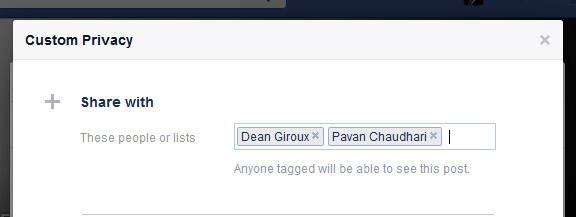
Next you will see a screen like this.

You can either share with all of your friends or select just some (you must hit the X by the Friends and then pick each friend). Another option is to select everyone then pick out a few people to not share it with.
On the next screen you can choose how you want to share the group.
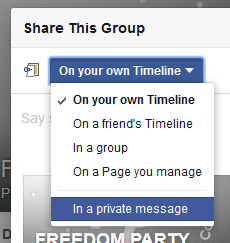
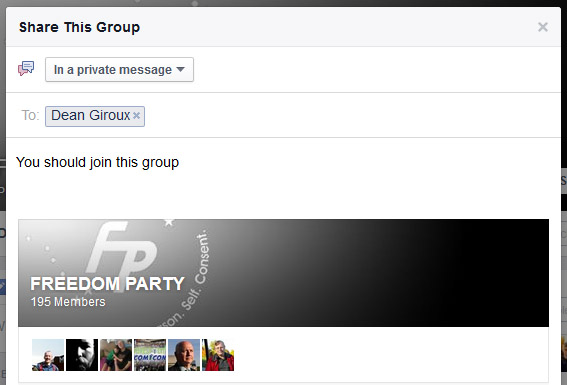
I've chosen the private message option and as you see below you get a message window that you can write a customized message in.
If you found this useful please subscribe to my blog for more helpful Internet marketing tips in the future.
Subscribe to:
Posts (Atom)